Milepost - Cart Goals & Order Bumps for WooCommerce — A live progress bar that rewards bigger carts with free shipping, a discount or a free gift, plus one-click order bumps at checkout.
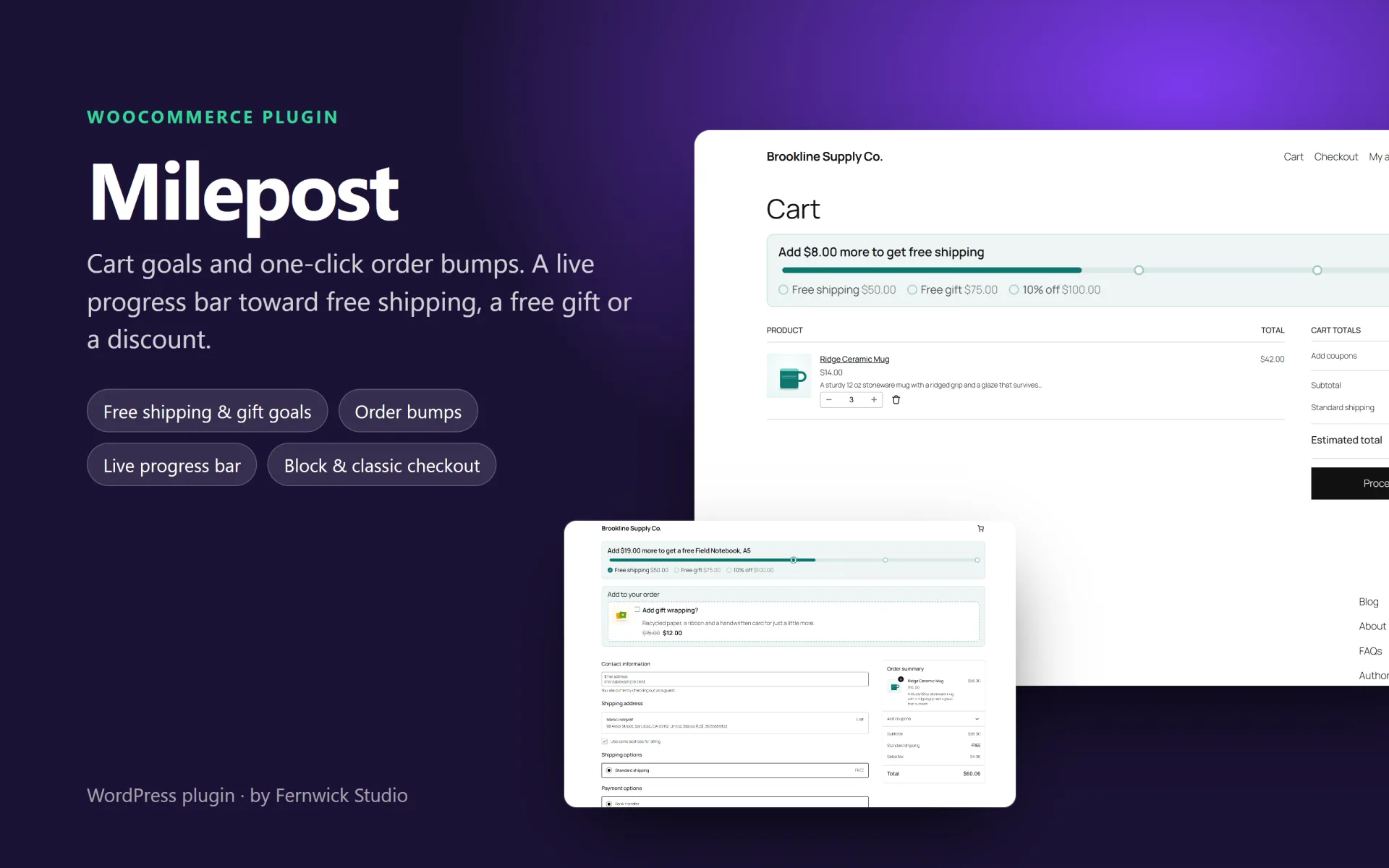
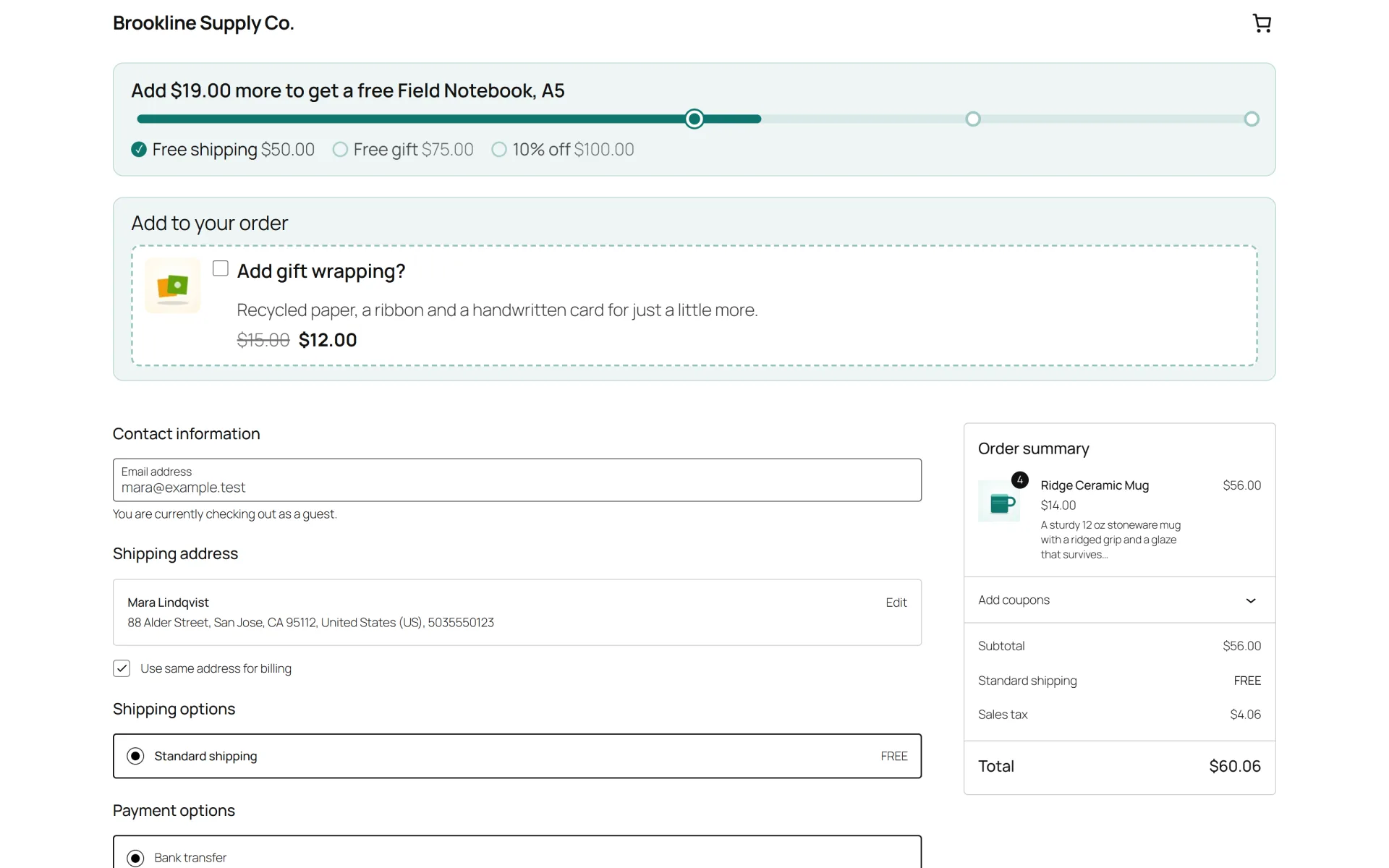
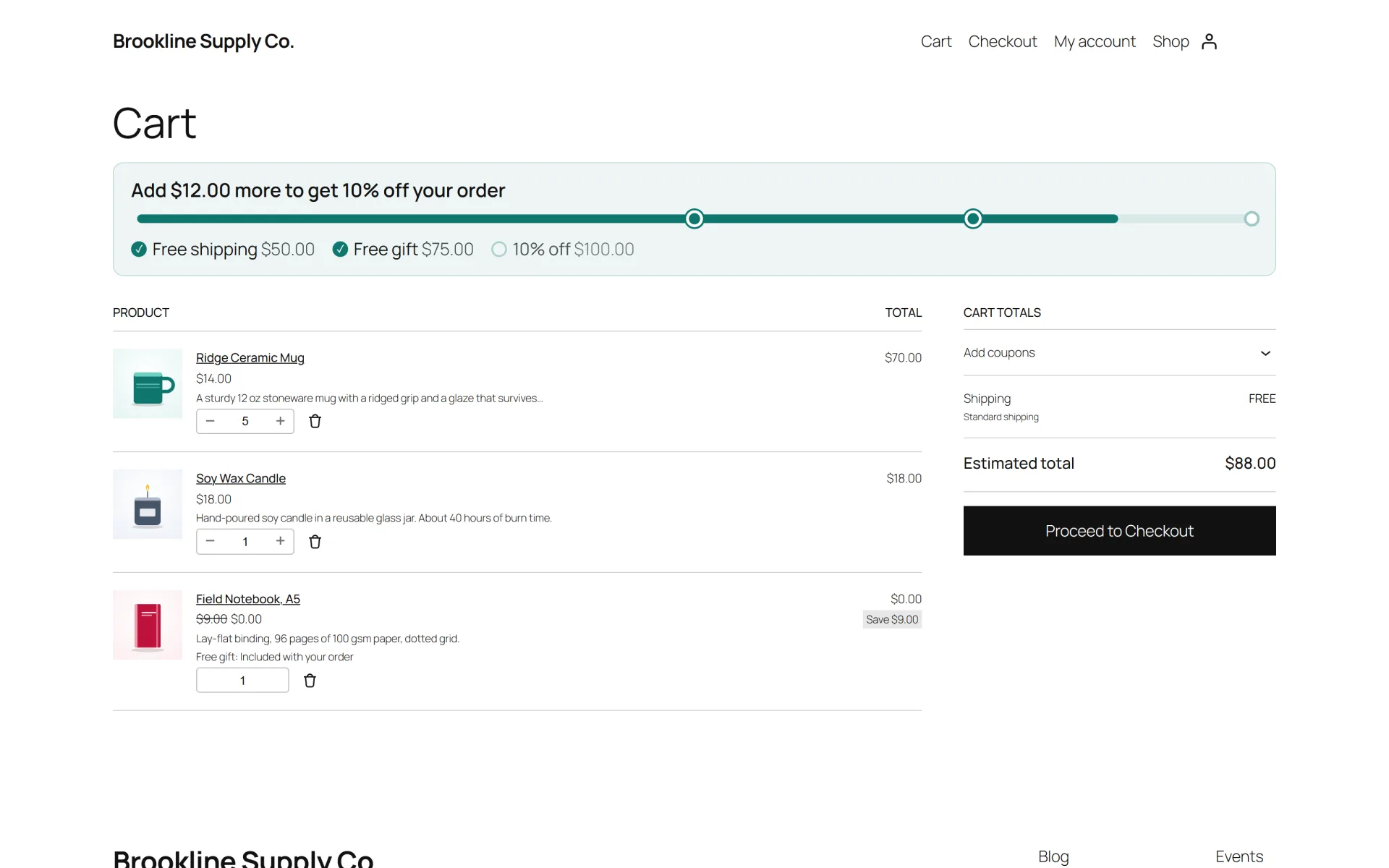
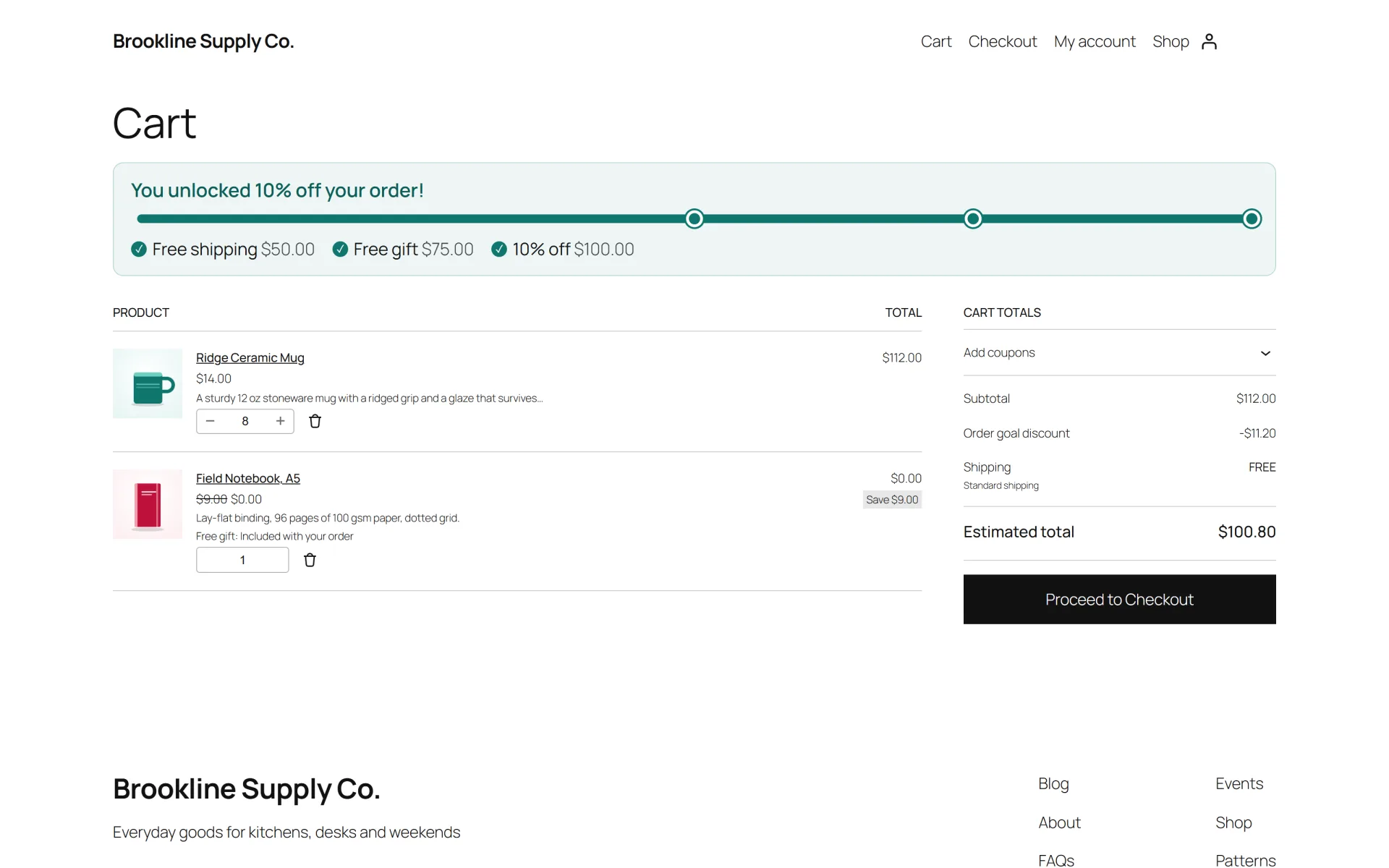
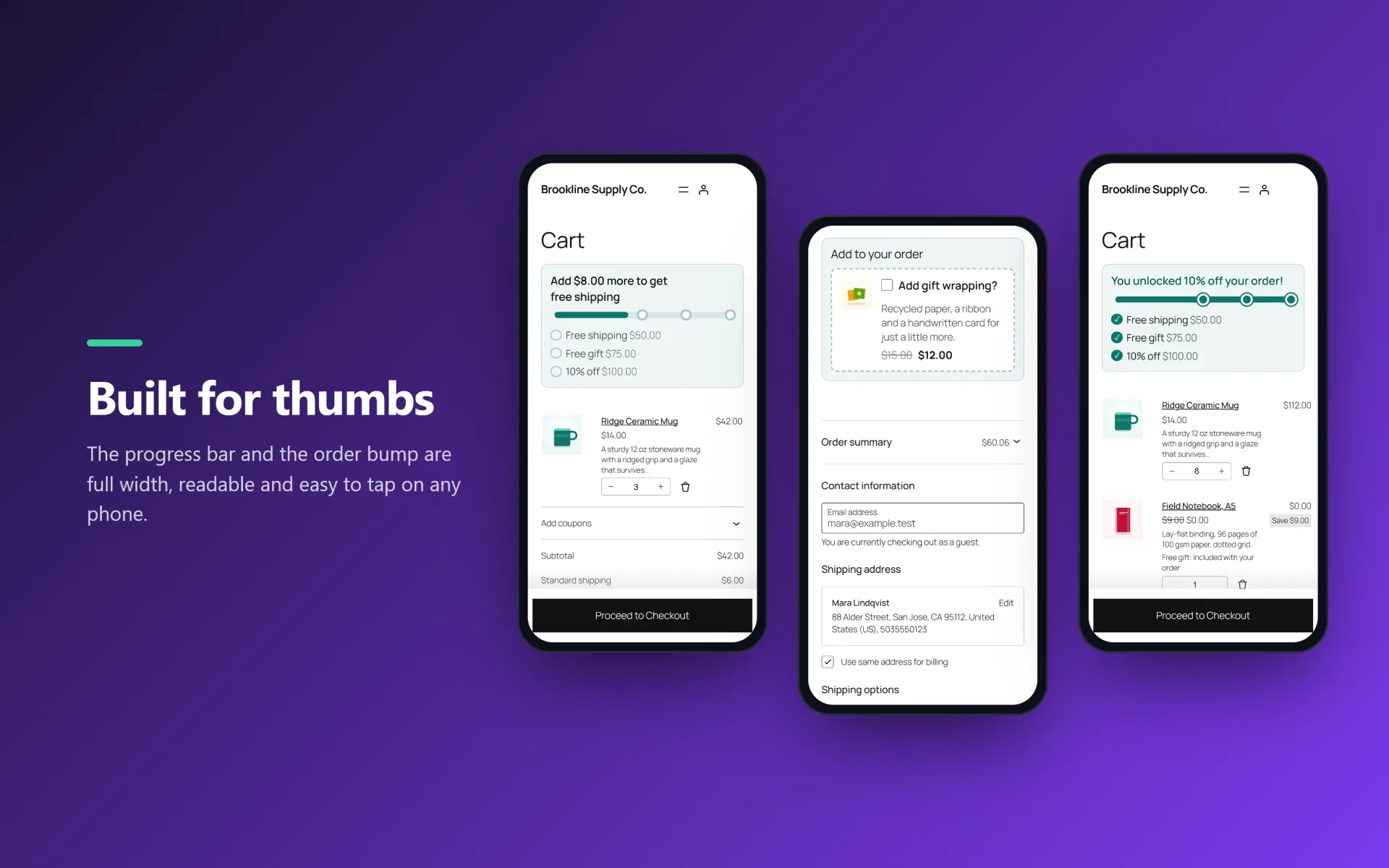
Milepost shows shoppers how close they are to a reward and gives them a one-click way to add one more thing. Set goals such as "free shipping at $50", "10% off at $100" or "a free notebook at $40". A progress bar on the cart and checkout tells shoppers how much more to add, and unlocks the reward the moment they get there. Order bumps offer one extra product with an optional discount, right where people decide to pay.
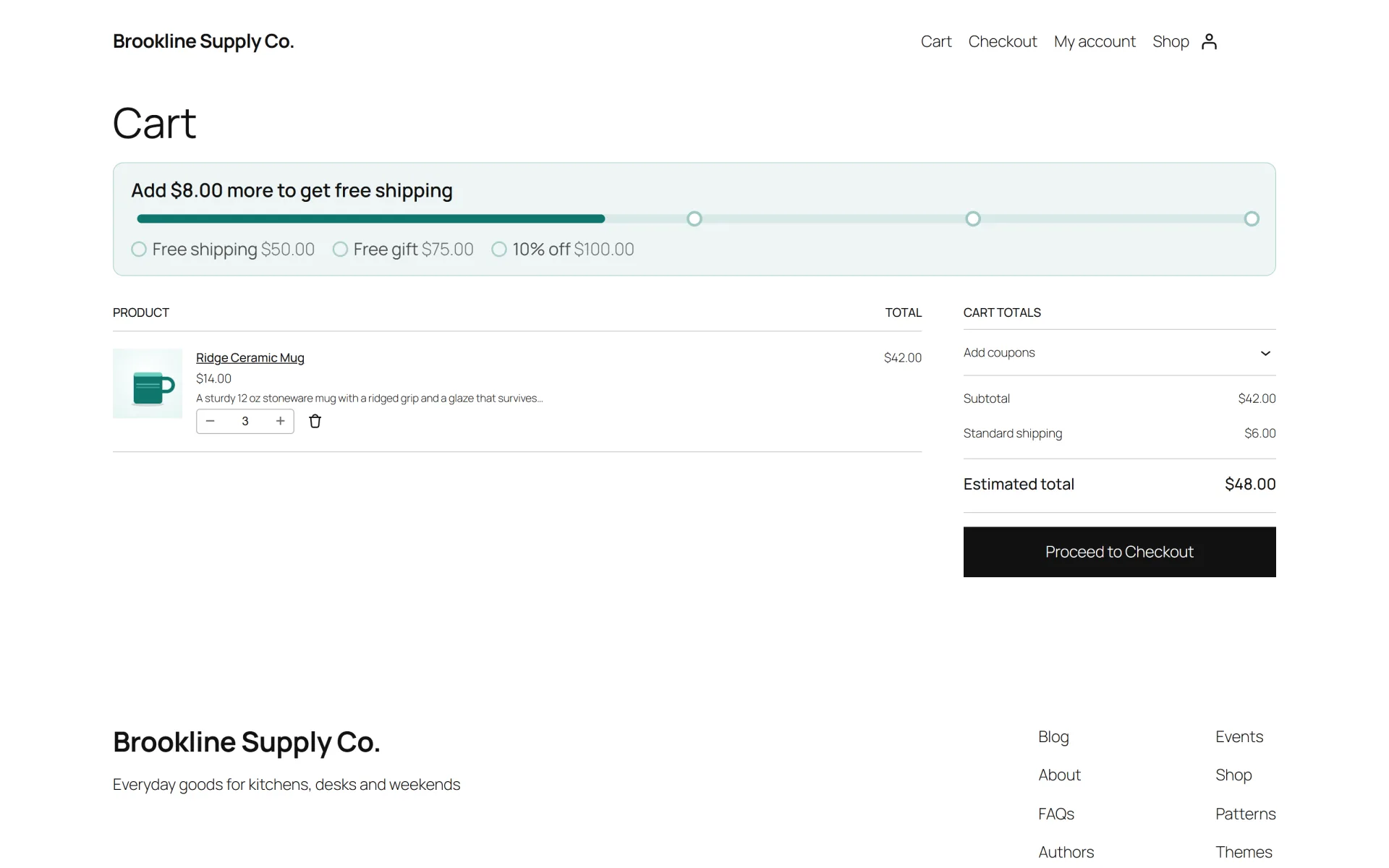
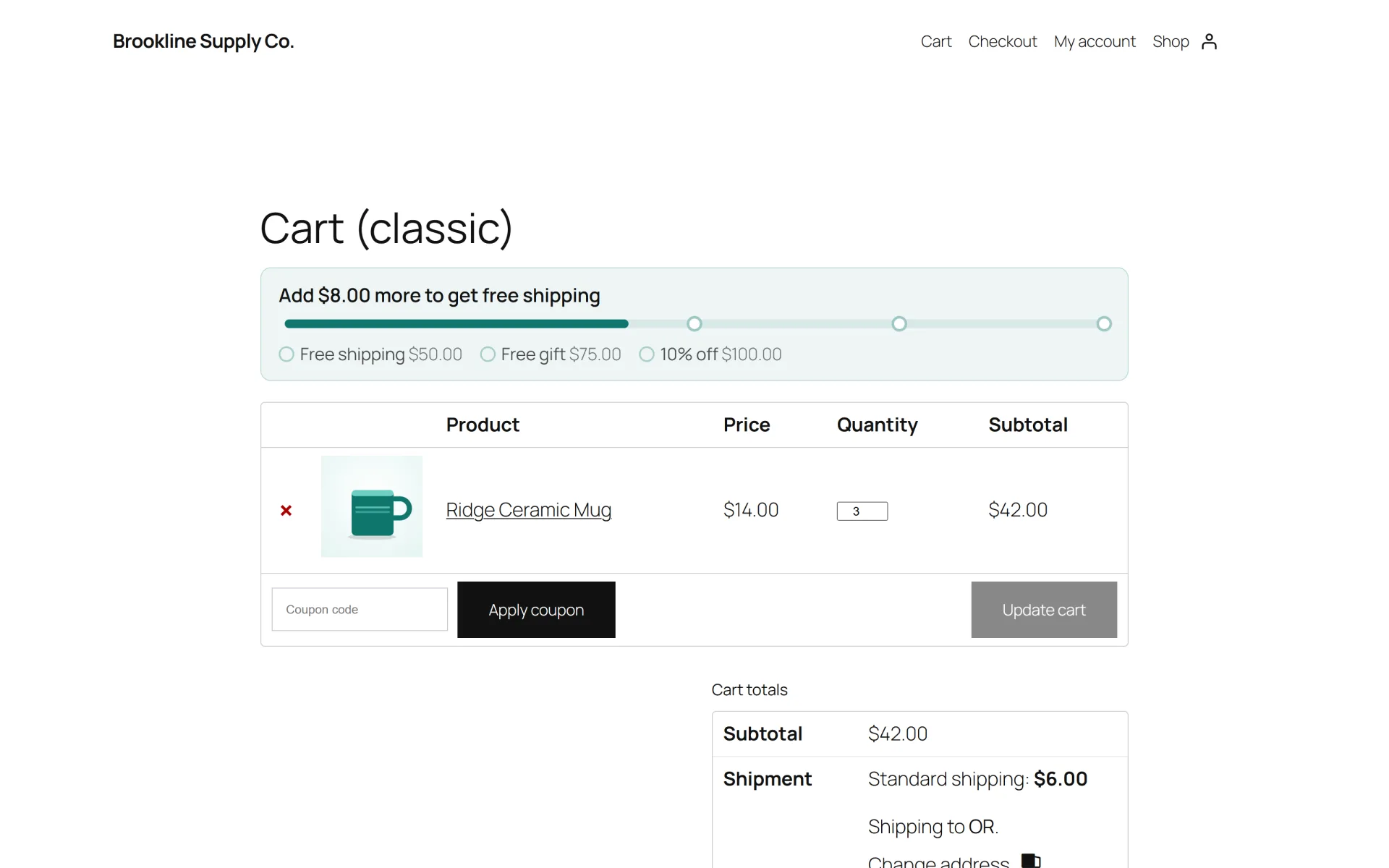
It works in the classic and the block cart and checkout. On the block cart the bar updates live when the quantity changes, with no page reload. Gifts and bumps are normal cart lines with a locked quantity, marked on the order so you can see what was earned or accepted.
Who it is for: stores with a free shipping threshold, a gift with purchase or a small add-on that sells well next to the main product. A threshold nudge is a common way to raise the average order value. Milepost makes it easy to run one, but it cannot promise what it will do for your sales.
What you get
- Goals with four rewards: free shipping, a percentage off, an amount off, or a free gift product
- Several goals at once on one progress bar, each with its own marker, message and priority
- Progress counted by cart subtotal (with or without tax) or by number of items. Gifts and bumps never count
- Live bar on the classic cart and checkout, the block cart and checkout, optionally the product page, and anywhere with a block or the [milepost_bar] shortcode
- On the block cart the bar updates as soon as the quantity changes, without reloading the page
- Free gift: added automatically when the goal is reached, removed again if the cart drops below it, and never re-added if the shopper removed it
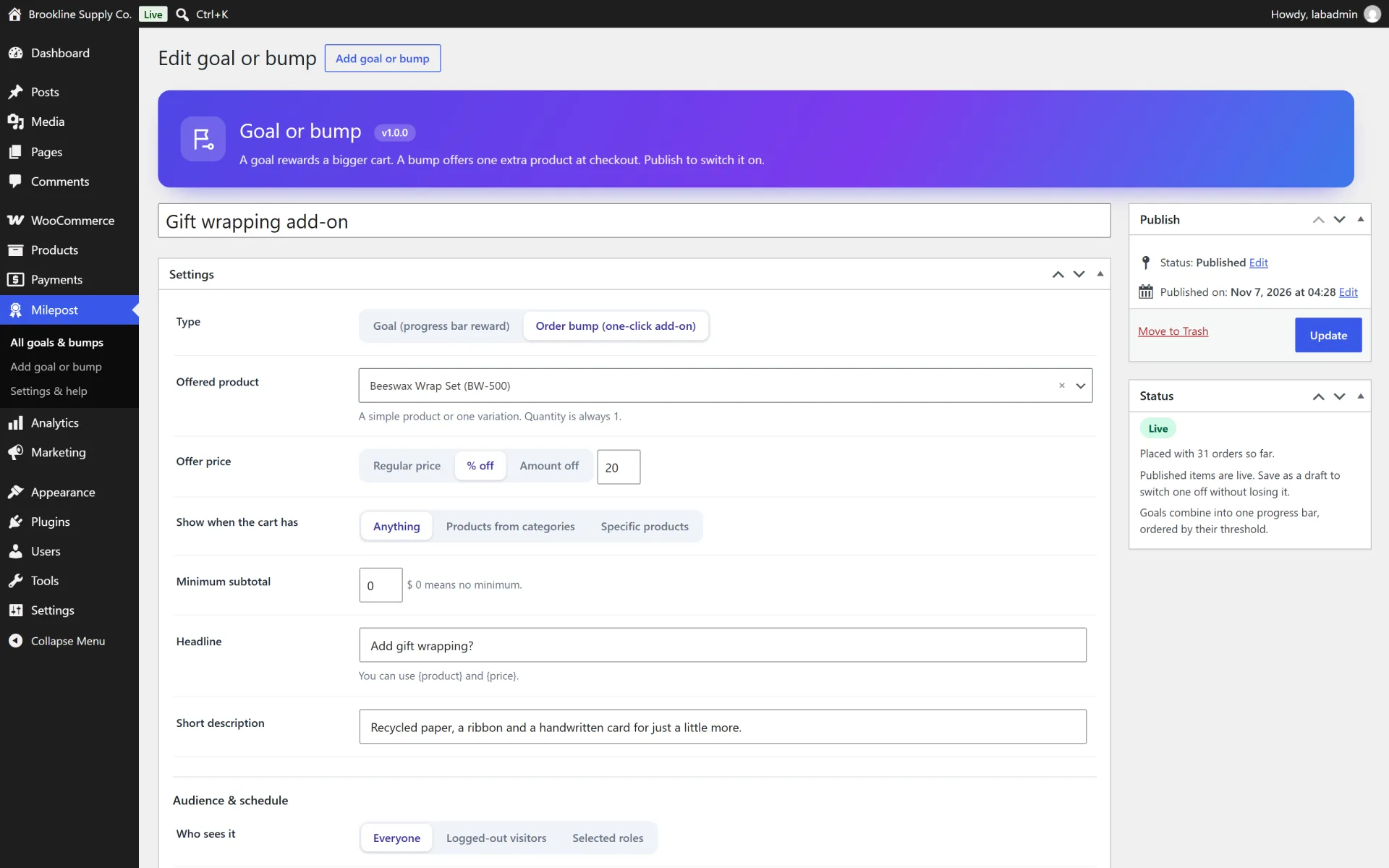
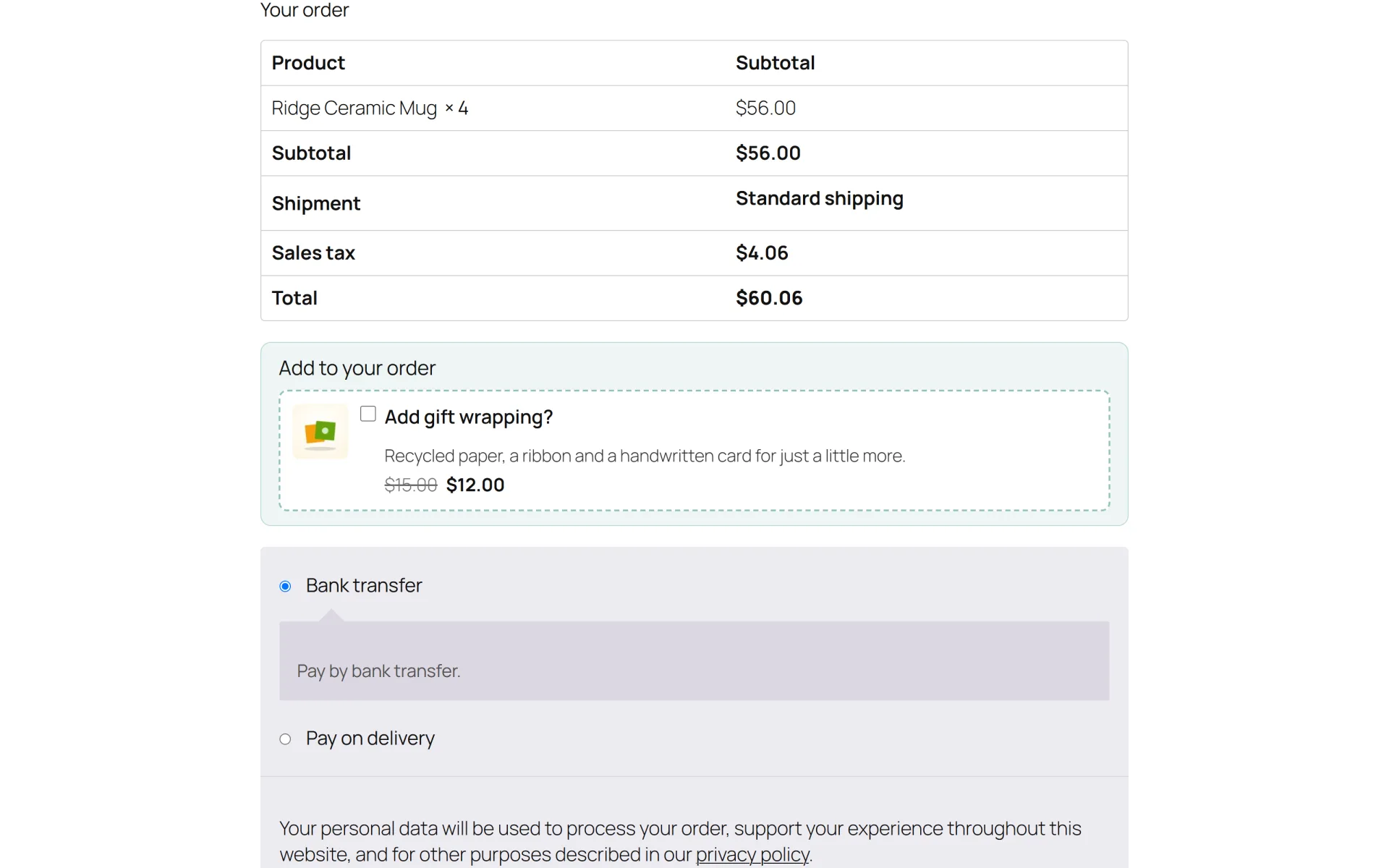
- Order bumps: one extra product (simple product or a single variation) with an optional percent or amount discount, ticked with one click and added without a page reload on the block checkout
- Bump rules: show for all carts, only when certain categories or products are in the cart, and with a minimum subtotal
- Audience targeting (everyone, guests, or chosen customer roles), start and end dates and priorities for every goal and bump
- Gifts and bumps appear on the order line with a visible "Free gift" or "Order bump" note, and each order bump and free-gift goal counts how many orders it was part of
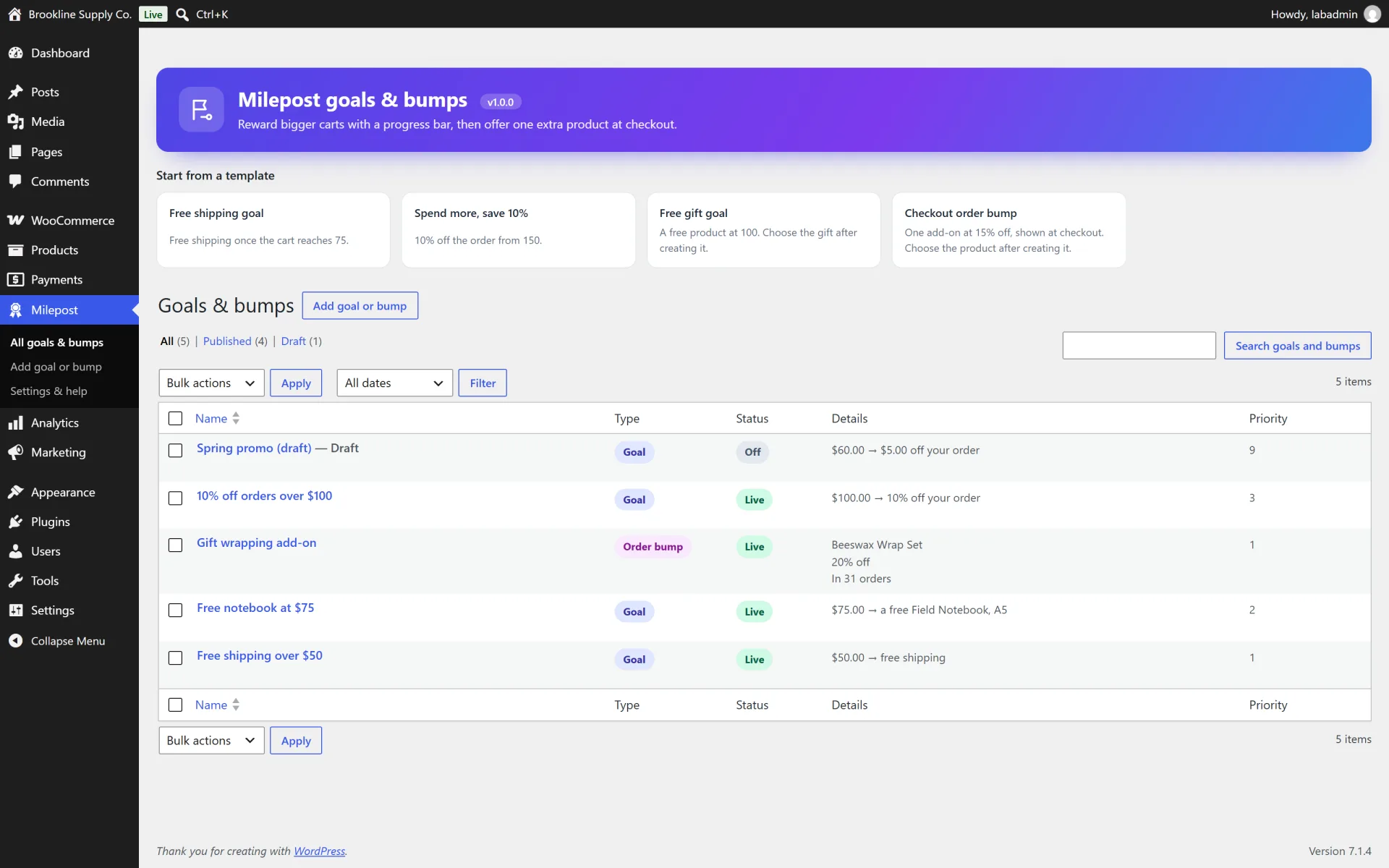
- Starter templates (free shipping, discount, free gift, order bump), a live preview in the editor and your own accent colour
- Declares HPOS (custom order tables) and Cart and Checkout blocks compatibility. Rate-limited, nonce-protected bump endpoint
- Works next to Bulkhead (quantity pricing): tier prices never touch gifts or bumps
How it works
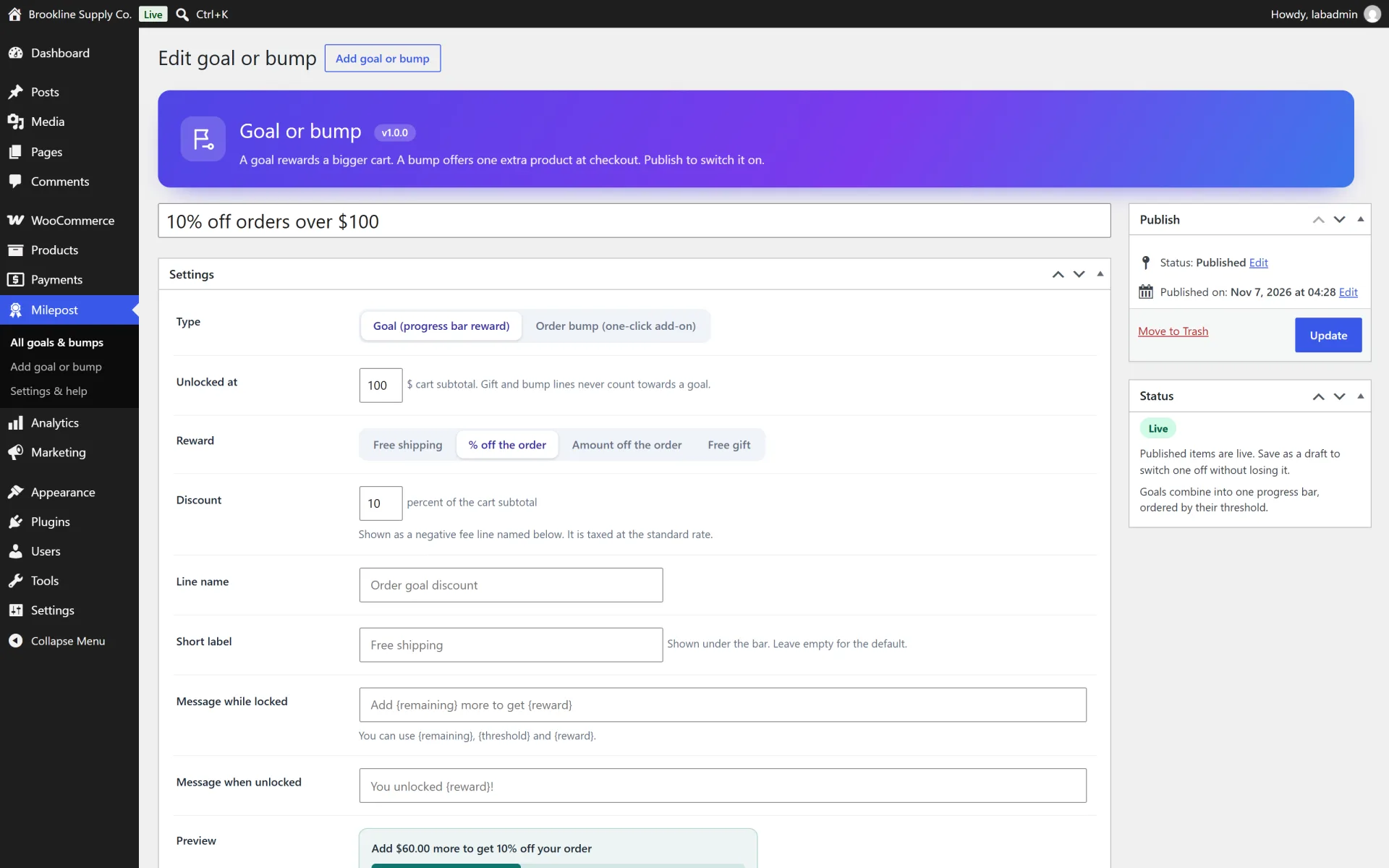
Add a goal. Milepost > Add new, type "Goal". Set "Unlocked at" (an amount or a number of items, depending on your setting) and choose the reward: free shipping, % off the order, amount off the order or a free gift. Give it a short label for the bar and, if you like, your own messages using {remaining}, {threshold} and {reward}.
Free shipping. The reward sets the cost of paid shipping rates to zero once the goal is reached. Free shipping and local pickup methods are left as they are, and rates added by other plugins after Milepost are not touched.
Percent and amount rewards. These appear as a negative fee line with the name you choose. WooCommerce taxes that line at the standard rate, so for carts that mix tax classes prefer free shipping or a gift. Progress is measured before coupons.
Free gift. Choose a simple product or one variation. It is added once at the goal, free, with a locked quantity. If the cart falls below the goal it is removed, and if the shopper removes it themselves it stays removed.
Add an order bump. Milepost > Add new, type "Order bump". Choose the product, an optional discount and when it is offered (all carts, certain categories or products, minimum subtotal). Shoppers tick a box to add it and untick to remove it. A product that is already in the cart as a normal line is not offered.
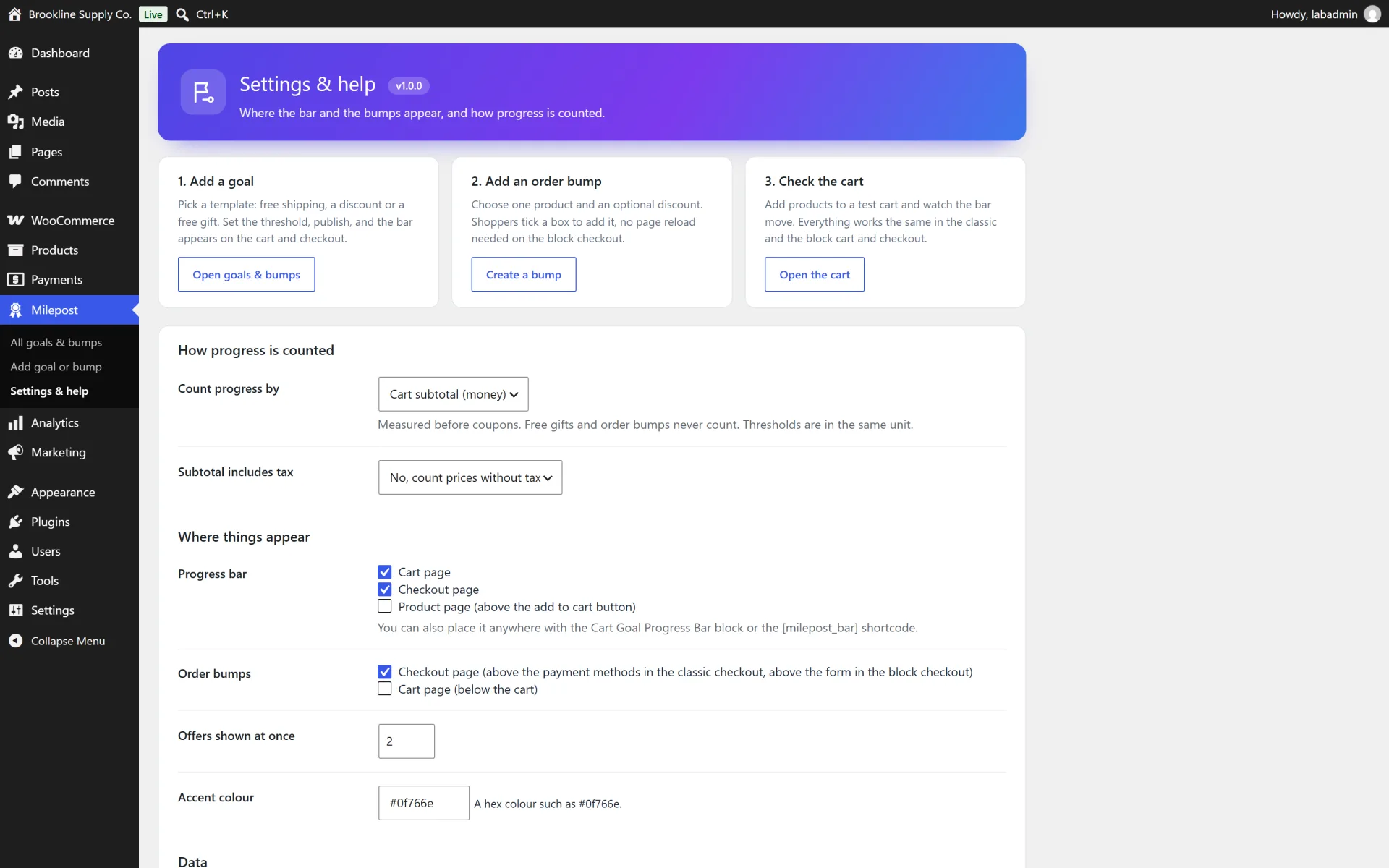
Where things appear. Under Settings choose the cart, the checkout and optionally the product page for the bar, and the checkout or cart for bumps. You can also place the bar with the "Cart Goal Progress Bar" block or [milepost_bar]. On the block cart the bar sits above the cart block and bumps below it, on the block checkout both sit above the form.
Not included (so there are no surprises)
- Coupon codes. Percent and amount rewards are applied automatically as a negative fee line, they are not coupons.
- Creating or changing shipping methods. The free shipping reward sets the cost of paid shipping rates to zero. Local pickup is left alone.
- Post-purchase offers after payment, upsell funnels or subscriptions.
- Revenue reports or A/B testing. Each order bump and free-gift goal shows only how many orders it was part of.
- Several variations or quantities of a bump. A bump is one product (or one variation) added once.
Install in minutes
- Make sure WooCommerce is installed and active.
- In your WordPress admin open Plugins > Add New > Upload Plugin and choose the downloaded zip (the one named milepost-cart-goals-v1.0.0.zip).
- Click Install Now, then Activate. A new Milepost menu appears in the admin sidebar.
- Open Milepost, pick a template such as "Free shipping" or "Order bump", adjust the numbers and publish.
- Add a product to a test cart and open the cart or checkout. The bar appears at the top, bumps appear above the payment methods.
- Optional: choose where the bar and the bumps appear and how progress is counted under Milepost > Settings & help.
What is in the download
- The ready-to-upload WordPress plugin (
milepost-cart-goals), organised in namespaced PHP classes
readme.txt in WordPress.org format, a full HTML documentation page in docs/ and a CHANGELOG.mdlicense.txt (GNU GPL v2) and a translation template in languages/- A careful uninstall: your data is kept when you delete the plugin, unless you tick the "delete data" option in the plugin settings first. Past orders are never changed.
About the screenshots
The gallery shows the plugin running on a private test shop ("Brookline Supply Co.") with sample products, sample orders and generated placeholder pictures, not a public demo. There is no hosted live demo for this plugin.
Third-party product and network names mentioned (WordPress, WooCommerce and others) are trademarks of their respective owners. This plugin is an independent product and is not affiliated with or endorsed by them.