

Installing a PHP script: the basics
A plain checklist for installing a PHP script you bought: check requirements, create the database, upload the files, run the installer, set up cron, test, and take a backup before you change anything else.
Most PHP scripts install the same way, and most failed installs come from skipping the first step. This guide covers the common path from a downloaded archive to a working site, with the commands you are most likely to need. Always follow the instructions that come with the script when they differ from this.
1. Check the requirements first
The listing and the documentation name the PHP version and extensions the script needs, and sometimes a database type and version, a web server and whether scheduled jobs are required. Compare them with your hosting before you upload anything:
- PHP version. Your host's control panel shows it, and it can usually be changed per site. On a server, run
php -v. - PHP extensions. Scripts commonly need some of
pdo_mysql,mbstring,curl,openssl,fileinfo,gdandjson. Runphp -mto list what is installed, or check the "PHP info" page in your control panel. - Database. MySQL or MariaDB, at the version the listing names.
- Web server. Apache with
mod_rewriteenabled, or Nginx with a matching rewrite rule. Listings usually say which they support. - Cron. Anything that checks server status, sends queued mail or expires listings needs a scheduled job.
As a rough guide to what you are buying: the DCLIST listing names PHP 8.1+, MySQL 5.7+ or MariaDB 10.3+ and Apache rewrite or Nginx, and MinecraftIP adds cron for its status pings. Read the equivalent line on whichever script you choose, because requirements differ between scripts and versions.
If something is missing and you cannot change it, stop here and pick different hosting or a different script. It is much cheaper than a half-working install.
2. Shared hosting or a VPS?
| Factor | Shared hosting | VPS or cloud server |
|---|---|---|
| Setup effort | Low: a control panel does most of it | Higher: you install and secure the web server, PHP and database |
| Control | Limited: PHP settings and cron are what the host allows | Full |
| Good for | Scripts that list shared hosting as supported and need little background work | Scripts with frequent cron jobs, many visitors or specific PHP versions |
| You are responsible for | Your site and its files | Everything, including operating-system updates and firewall |
If a listing says "shared hosting or VPS", either works to start with. Move to a VPS when the host limits cron frequency, memory or processes, or when pages slow down under real traffic. The hosting guide covers when and how.
3. Create the database
Give each site its own database and its own database user with only the rights it needs. In a control panel this is a "MySQL databases" screen. On a server, from the MySQL or MariaDB prompt:
CREATE DATABASE example_site CHARACTER SET utf8mb4 COLLATE utf8mb4_unicode_ci;
CREATE USER 'example_user'@'localhost' IDENTIFIED BY 'a-long-random-password';
GRANT ALL PRIVILEGES ON example_site.* TO 'example_user'@'localhost';
FLUSH PRIVILEGES;
Use your own names and a generated password, and store them in a password manager. Do not reuse the root account or one database user across sites.
4. Upload the files
Upload the archive's contents to the folder your domain serves, or to a folder above it when the script ships a separate public directory.
- Extract the archive on your computer first and check for a README or install guide.
- If the script has a
publicorwebfolder, point the domain's document root at that folder, so configuration files stay out of reach. Where you cannot change the document root, follow the script's documentation for the safe alternative. - Upload with SFTP rather than plain FTP, or extract the archive on the server so thousands of small files do not have to be sent one by one:
unzip script-1.0.0.zip -d /var/www/example.com
5. Set up rewrites
Clean URLs depend on rewrite rules. Apache uses the .htaccess file shipped with the script, so make sure it was uploaded (hidden files are easy to miss) and that AllowOverride is enabled for the site. Nginx has no .htaccess; the script's documentation should give a try_files rule. A typical front-controller rule looks like this, but use the script's own:
location / {
    try_files $uri $uri/ /index.php?$query_string;
}
6. Run the installer or configure by hand
Many scripts include a browser installer. Open the install address from the documentation, enter the database details you created and follow the steps. Others use a configuration file, such as config.php or an .env file: copy the example file, fill in the values and import the SQL schema if the documentation says to.
When the installer asks for an admin account, use a unique email and a strong password. Afterwards, delete or lock the installer as the documentation tells you. It is on the security checklist for a reason.
7. Set permissions
Only folders the script must write to (uploads, cache, logs) should be writable by the web server. A common baseline:
find /var/www/example.com -type d -exec chmod 755 {} \;
find /var/www/example.com -type f -exec chmod 644 {} \;
chmod -R 775 /var/www/example.com/storage   # only the folders the docs name
Follow the script's own list of writable folders, and never set 777 to "make it work". It makes it work for everyone, including attackers.
8. Add the scheduled jobs
If the script needs cron, the documentation gives the exact command. The entry usually looks like this, and runs every few minutes:
*/5 * * * * /usr/bin/php /var/www/example.com/cron/run.php >> /var/www/example.com/logs/cron.log 2>&1
Use the paths and schedule from your script's documentation. In a control panel, add the same command under "Cron jobs". Check the log after a few minutes to confirm it ran, and read the hosting guide to stop overlapping runs.
9. Switch on HTTPS
Install a certificate (most hosts offer a free one) and redirect plain HTTP to HTTPS. Set the site address in the script's settings to the https:// version. Mixed http and https URLs cause broken styles and failed logins.
10. Test like a visitor
- Open the home page, a listing page and the search, in a private window.
- Register a test account and check that the confirmation email arrives.
- Sign in to the admin area and save a setting.
- Upload an image if the script allows it.
- Look at the error log. New warnings after each step usually point straight at the cause.
Troubleshooting
| Symptom | Likely cause | What to check |
|---|---|---|
| Blank white page | A PHP error with display turned off | The PHP or web server error log |
| Every page except the home page returns 404 | Rewrites are not working | .htaccess uploaded, mod_rewrite on, or the Nginx rule |
| "Could not connect to database" | Wrong host, name, user or password | Credentials, and whether the host is localhost or a separate address |
| Installer says an extension is missing | Requirements not met | php -m, then enable it in the control panel |
| Images will not upload | Folder not writable, or upload limits too low | Permissions, upload_max_filesize, post_max_size |
| Emails never arrive | Mail not configured | Mail settings, SPF and DKIM, spam folder |
11. Finish the job
Then take a full backup (files and database) and keep it before you change anything else. Your next steps are the security checklist and learning how to test updates on a staging copy.
Frequently asked questions
Can I install a script on my own computer first?
Yes, and it is a good way to learn. A local stack such as XAMPP runs PHP, Apache and MySQL. Treat it as practice, because paths, cron and HTTPS behave differently from a live server.
Do I need command-line access?
Not always. Many installs can be done with a control panel and a browser. Command-line access helps with cron, permissions and large uploads, and is normal on a VPS.
The install worked but the site is slow. Why?
First check the PHP version and whether caching is available. Then see the hosting guide.
Who do I ask if the installer fails?
Start with the script's documentation and its listing, then message the author through the marketplace with your PHP version, hosting type and the exact error. The support policy explains what support covers.
Product and platform names such as Discord and Minecraft belong to their respective owners. CodeMercio and its sellers are independent and are not affiliated with or endorsed by them. Names are used only to say what a script works with.
Scripts mentioned in this post
PHP
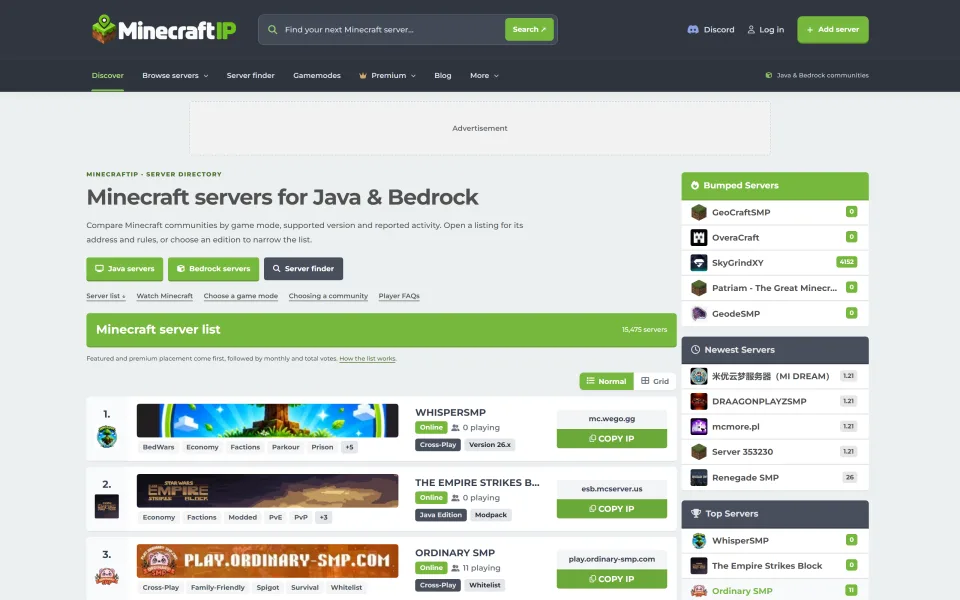
MinecraftIP — Minecraft Server List Script
Self-host a Java & Bedrock Minecraft directory like MinecraftIP.com: voting + Votifier, Premium, featured slots, banner ads (PayPal EUR), owner tools, and SEO edition/tag pages on PHP + MySQL.
- Plain PHP
- minecraft
- server list

Regular license price USD 299.99
New listing Updated
PHP
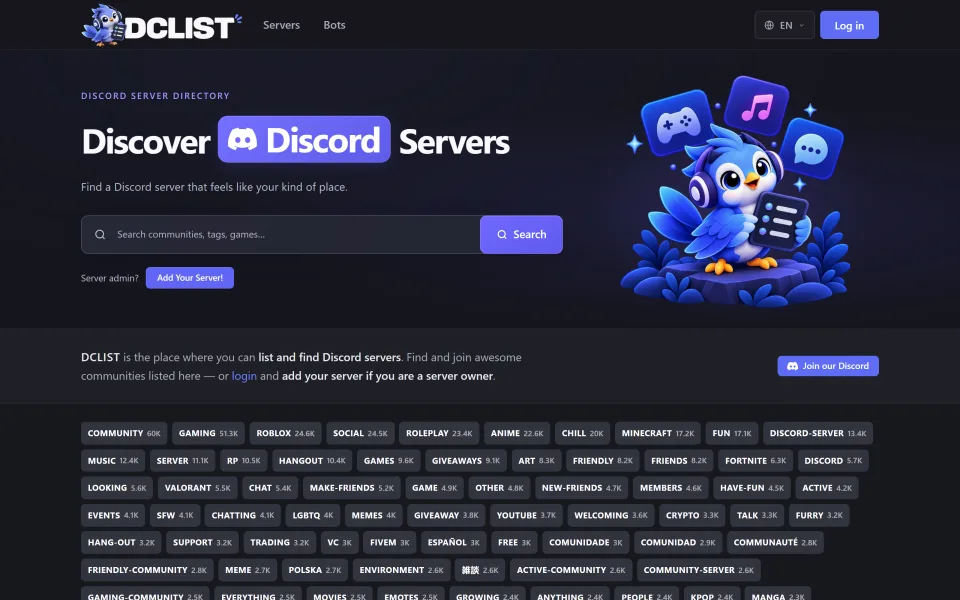
DCLIST — Discord Server & Bot List Script
Self-host a Discord server & bot directory like dclist.gg: votes, reviews, bumps, claims, Discord OAuth, owner dashboard, admin panel, and 23 languages on plain PHP + MySQL. Earn with PayPal-sponsored placements on /advertise.
- Plain PHP
- discord
- server list

Regular license price
USD 224.99
, was
USD 299.99
New listing Updated


Comments
Sign in or create an account to comment.
No comments yet. Be the first.